How to Get a Transaction Link from the Blockchain Explorer
When contacting support about a direct crypto transfer, you may be asked for a link to the transaction from a blockchain explorer. Here are two ways to get it.
Method 1: Via the Wallet App
The easiest way — most wallet apps have a built-in button to view the transaction in the blockchain explorer.
Open Transaction Details
Open the wallet you used to send the payment (Tonkeeper, Wallet, etc.) and go to transaction history. Tap on the transaction you need.
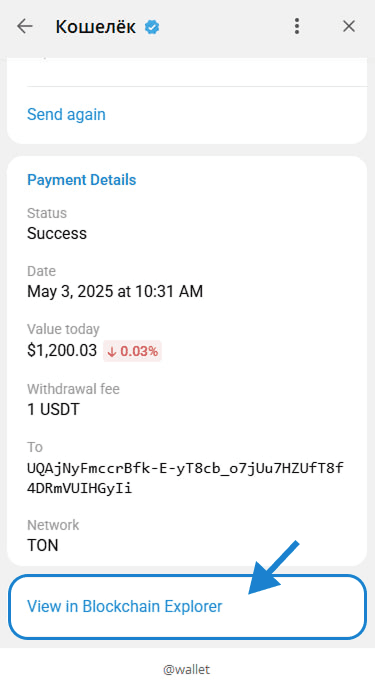
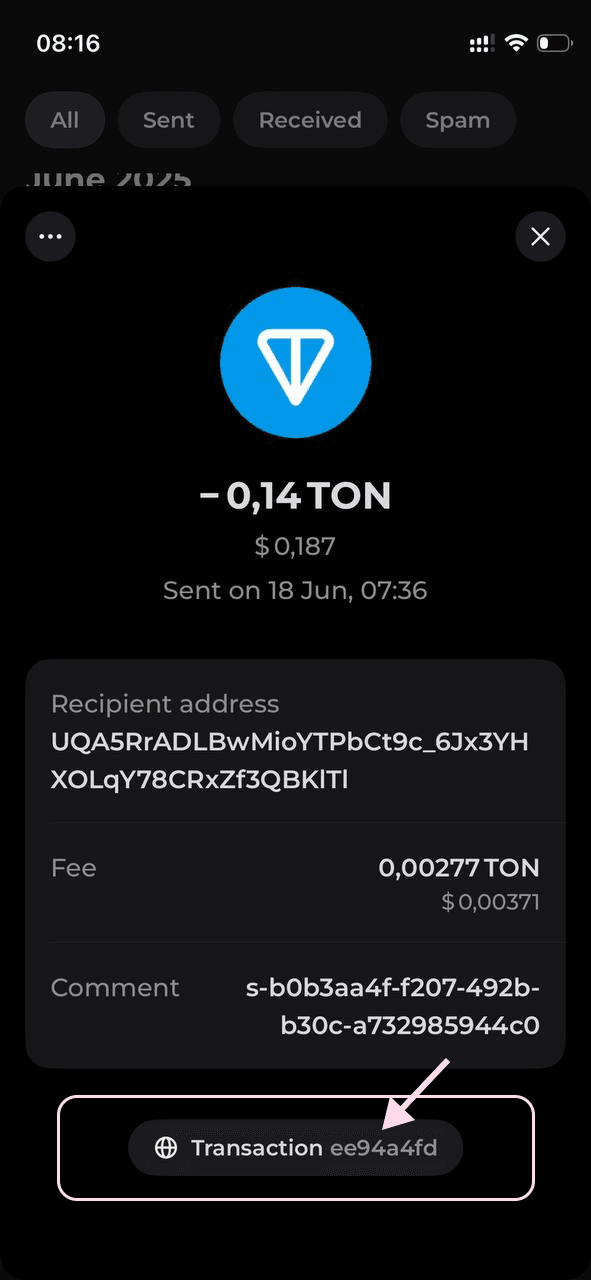
Tap "View in Blockchain Explorer"
Scroll to the bottom of the transaction details. You'll see a button like "View in Blockchain Explorer" (Wallet) or "Transaction" with a hash (Tonkeeper). Tap it.
Copy the Link
The blockchain explorer page will open in your browser. Copy the URL from the address bar — this is the transaction link you can send to support.
Method 2: Search Manually on Tonviewer
If you can't find the button in the wallet, you can search for the transaction manually using the wallet address or transaction hash.
Copy the Wallet Address or TX Hash
In your wallet app, copy either the transaction hash (TX Hash) or your wallet address from which the payment was sent.
Open a TON Blockchain Explorer
Go to any TON blockchain explorer — for example, tonviewer.com, tonscan.org, or another from the list below. Paste the copied address or hash into the search bar and press Enter.
Find the Transaction and Copy the Link
Find your transaction in the list (match by amount and time). Click on it and copy the URL from the browser's address bar.